Sunday, April 27, 2014

Reset Lost SA Password on SQL Server 2012 / 2014

Lost or forgot SA password on MS SQL Server 2012 or 2014 instance? Looking for a way to recover or reset the password? With SQL Server Password Changer you can easily reset lost SA password on all versions of  SQL Server instance, including SQL Server 2014 and 2012.

How to Reset Lost SA Password on SQL Server 2012 / 2014?

Before getting started, you need to stop your SQL Server instance so we can then reset your lost SA password offline, by following these steps:
  1. Click here to download and install SQL Server Password Changer on your local computer.
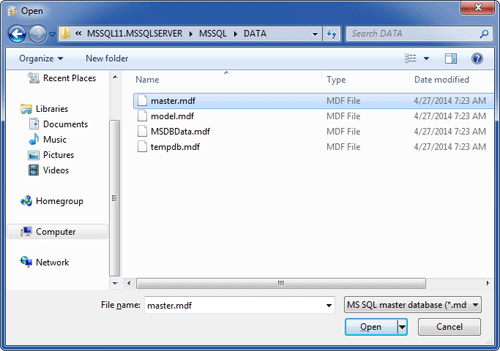
  2. Start the program and click the Open File button. Select the master database file (master.mdf) for your SQL Server instance. Typically it is located in the folder:
    C:\Program Files\Microsoft SQL Server\MSSQL11.MSSQLSERVER\MSSQL\DATA Select the SQL Server master database file
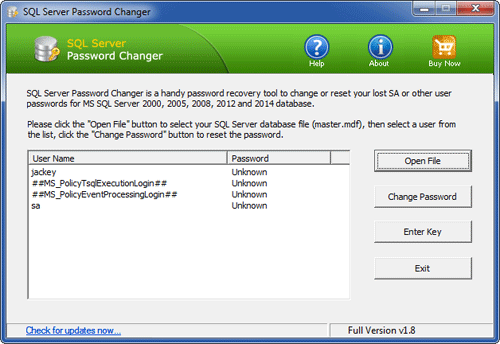
  3. The program will automatically decrypt the master database file and display all user accounts in your SQL Server database. SQL Server Password Recovery
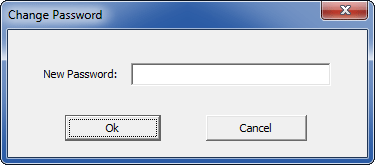
  4. Select a user account whose password you want to change, click the Change Password button. Type a new password and click OK. Change SQL Server Password
  5. The old password will be replaced with your new password. Now start your SQL Server instance and you can then connect to your SQL Server database with your new password.
Besides resetting SQL Server 2012 / 2014 password, you can also use SQL Server Password Changer to change forgotten SA password on SQL Server 2008, 2005 and 2000.

Sunday, April 20, 2014

Unlock Forgotten Windows 8 Local / Microsoft Account, PIN and Picture Password

Forgot your Windows 8 user password and can't log in with any sign-in option? Is there any Windows 8 password recovery software? Don't panic. This article will explain how to unlock forgotten Windows 8 local account, Microsoft account, PIN and Picture Password with ease.

1. Local Account


Local account password is stored in the SAM file using NT/LM hash. SAM is part of the Windows registry that is located in c:\windows\system32\config\. The SAM file is locked and cannot be accessed when the operating system is loaded. However, it is fully accessible if the computer is booted from a live recovery disk such as PCUnlocker.

PCUnlocker is a WinPE-based utility with simple graphical user interface. The program works offline and it creates its own boot environment. Once you boot into PCUnlocker Live CD, you can unlock / reset lost password of any user account on Windows 8.1 / 8 / 7 / Vista / XP.

2. Microsoft Account


In Windows 8 / 8.1, you can link a local account to your Microsoft account or create a brand new Microsoft account. After forgetting the Microsoft account password, you can reset it online via the Microsoft Account Password Reset page. But what to do if your Microsoft account is compromised or hacked?
Just like the domain logons, Windows caches the Microsoft account password locally which makes it possible to login without Internet connection. If you're locked out of Windows 8, you can also reset the cached Microsoft account password with PCUnlocker, which allows you to log on to Windows 8 with a new password.


3. Picture Password and PIN


During Windows 8 installation, we must first create a local account or Microsoft account and then optionally set up a PIN or Picture Password. So if you've forgotten your PIN code or Picture Password, click Switch to password button on the picture logon screen and you can then use a local / Microsoft account to login.

Picture Password and PIN logon seem to be more secure than a local account. However, these two types of passwords are stored using reversible encryption, and you can decrypt and recover Windows 8 Picture Password and PIN easily as long as you can log into Windows with admin rights.
Wednesday, April 16, 2014

Unlock Windows 7 ASUS Laptop If Forgot the Admin Password?

Forgot the admin password on your Windows 7 Asus laptop and don't have a reset disk? If you've lost your Windows 7 password, you won't be able to log in. Here's how to unlock Windows 7 Asus laptop password with a CD.
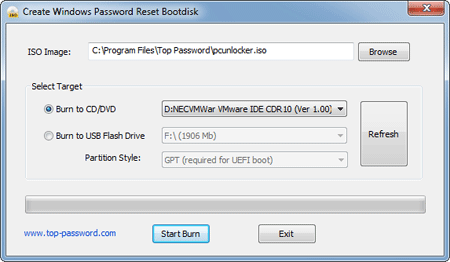
  1. Download and install Password Recovery Bundle on another computer with Internet access. Launch the program and click the Windows Password button, and you'll get the interface as follow.
    Create a Windows Password Reset Disk
  2. Place a blank CD in the CD-ROM drive of the computer, then click the Refresh button and select the device you just plug in. Click the Start Burn button to begin the burning process. A bootable password reset disk will be ready in a few minutes.
  3. Now go back to your Asus PC, and insert the Windows password reset disk you just made.
  4. Turn on the computer. When the Asus splash screen is displayed, a boot menu prompt may be displayed for a few seconds near the bottom of the screen, indicating that a key (F2 or Del, for example) can be pressed to enter into BIOS Setup.
  5. After entering into BIOS, select CD/DVD as the first boot device. However, if you need to bypass the password on a Windows 8 Asus PC with UEFI BIOS, you also need to Set Windows 8 PC to Boot with Legacy BIOS Mode Instead of UEFI Mode.
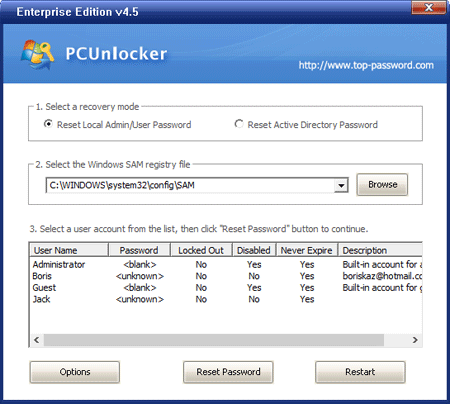
  6. Once booting from the CD, it begins loading the Windows PE OS and you'll reach the main window of PCUnlocker program in minutes.
    Reset Windows Password
  7. Choose the administrator account and click the Reset Password button. This will unlock and reset lost Asus password instantly.
  8. Click the Restart button to reboot your Asus computer, you'll be able to login to Windows administrator account with a blank password.

Monday, April 14, 2014

Reset Forgotten Windows 8 Password without Disk

Forgot your Windows 8 administrator password and don't have a CD or USB drive at hand? In this tutorial we'll show you a simple way to reset Windows 8 password without disk. Let's proceed.

Of course, if you do have a PCUnlocker Live CD, you can reset your password the easy way with a few mouse clicks. The following trick works with local account only. If you're using a Microsoft Account to login to your computer, you can also use PCUnlocker to reset lost Microsoft Account password.

How to Reset Forgotten Windows 8 Password without Disk?

  1. Turn on your computer. While the computer is coming up and you can see it saying "Starting Windows". Hold down the Power button for at least 5 seconds to force power off your computer.
  2. When a sudden power loss is detected, the next time you turn on your computer and it will ask you if you want to launch startup repair or start normally. Choose the Launch Startup Repair (recommended) menu.
  3. Startup Repair will boot up and take a little while. When it asks you if you want to restore your computer to an earlier point, click Cancel.
  4. The Startup Repair Tool begins analyzing startup log files for clues as to the source of the problem and then launches a series of diagnostic tests to determine the cause of the startup failure. After a long time, you will get a dialog saying that Startup Repair cannot repair this computer automatically! Click on View problem details.
  5. Now scroll down to the end of the Detail Report. Click on the last link to read Microsoft's offline privacy statement.
  6. Notepad will come up with the privacy statement in it. Click on the File menu and then Open.
  7. In the File Open dialog box, change the Files of type option to All Files. Browse to the Sticky Keys application – C:\windows\system32\sethc.exe. Rename this file as a backup file: I named it "sethc-copy".
  8. Now find the cmd.exe file in the same folder. This is your Command Prompt. rename it to sethc.exe. Then close out of all the dialog boxes and Finish, so that the computer restarts.
  9. Once you get to the Windows login screen, hit the Shift key 5 times and it will open the Command Prompt window instead of the Sticky Keys application.
  10. Now to reset the password – just type the following command, replacing the username and password with the combination you want:
    reset user top-password.com 123456
  11. Close the Command Prompt and you should be able to log on to Windows with your new password.

That's it! You've successfully reset Windows 8 password without a CD or USB drive.

Monday, March 31, 2014

Offline Enable A Disabled Local Administrator Account on Windows

Did you mistakenly disable the local administrator account whiles logged in? If you are locked out of your computer, for example you forgot your password and can't log in using any user account,  you need to enable the administrator account offline. With PCUnlocker Live CD you can enable a disable local administrator account in Windows 8, 7, Vista and XP. This tool can also reset Windows administrator password if you have forgotten it.

How to Enable A Disabled Local Administrator Account Offline in Windows?

All you need is to make a Live CD using another computer that you have full access to, then boot your locked machine from the CD and it allows you to enable a disabled Windows administrator account easily! Here are step-by-step instructions:

Step 1: Create A PCUnlocker Live CD/USB Drive
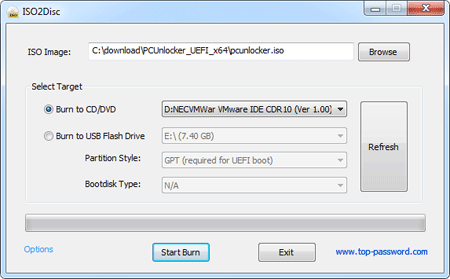
  1. Start the ISO2Disc program. Click the Browse button to locate your ISO image file, then click the Start Burn button to make a PCUnlocker Live CD or USB drive.
    Burn ISO Image to CD/DVD or USB flash drive
  2. Click here to download and save the PCUnlocker self-extracting Zip file to a folder on your hard drive, then extract the ISO image file: pcunlocker.iso from it.
  3. Insert a blank CD or USB flash drive into your computer. Download and install the freeware ISO2Disc.

Step 2: Boot Your Locked PC from CD/USB Drive

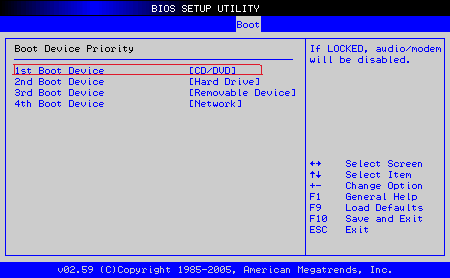
  1. Use the arrow keys to select the BOOT tab, then change the Boot Device Priority: Set 1st Boot Device to CDROM if you just created a bootable CD or DVD, or set 1st Boot Device to Removable Device if a bootable USB flash drive was created. BIOS Setting
  2. Connect the burned CD or USB drive to your locked computer. When it is powered on, check the boot-screen for setup key (i.e. DELETE key, F8 key, F2 key) to enter BIOS Setup Utility.
  3. Press F10 to save your changes. Now your computer will restart and then boot from PCUnlocker Live CD/USB drive. If you still can't get your computer to boot from the CD/USB drive, please refer to this boot up troubleshooting guide.

Step 3: Enable A Disabled Local Administrator Account

  1. After the computer boots up from the CD or USB drive, it will start the PCUnlocker program which displays a list of local accounts that are stored in Windows SAM registry hive. Select the disabled local administrator account and click on Reset Password button. Enable the Built-in Administrator Account to Log on Windows
  2. Click Yes to confirm your operation. The program will enable the local administrator account and also remove its password if it is protected with a password.
  3. Click Restart to reboot the computer and remove the CD or USB drive. You can then log into Windows local administrator account without a password.

Friday, March 28, 2014

Forgot Administrator Password on Windows Small Business Server (SBS)

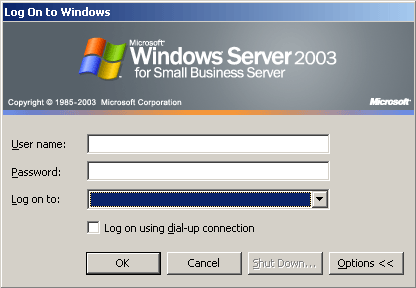
Forgot Windows Small Business Server password? If you can't log on with other administrator-level account, you're unable to change or reset the password. So if you're confronted with this situation where you essentially have no control over your server. What do you do at this point?

Forgot Windows SBS password

In this tutorial we'll show you how to reset Windows SBS 2011 / 2008 / 2003 password when you lost or forgot the administrator password. Because we could not log into SBS as admin, so it's impossible to install any software on your computer to hack into the Security Account Manager (SAM). Fortunately, with the PCUnlocker boot CD you can circumvent Windows security restrictions and reset SBS administrator password directly.

How to Reset Forgotten Administrator Password on Windows Small Business Server (SBS)?

Before you can reset SBS password, you need to make a PCUnlocker boot CD using another computer with internet connection. Next boot Windows Small Business Server from the CD and it enables you to reset a lost local admin / domain admin password easily. Here are detailed instructions:
  1. Download the PCUnlocker program from http://www.top-password.com. The download file is a zipped ISO image file. Double-click the zip file and the system will display all the contents in a new window. Just drag the pcunlocker.iso file from that window to your desktop or another location you can find easily.
  2. Burn the ISO image to an empty CD (or USB flash drive) using the freeware ISO2Disc, BurnCDCC or ImgBurn program.
  3. Connect the CD you've burned to your locked computer that you want to reset Windows SBS password on. Turn on the computer and change the boot order in BIOS. Make sure the CD/DVD drive is the first boot device.
  4. After booting from the CD, you'll see the WinPE operating system start. Just about half a minute later, you'll see the PCUnlocker program. It displays all your Windows user accounts. If you need to reset domain user password, please click on the "Reset Active Directory Password" option.
  5. Choose a user account and click on "Reset Password" button. The program will unlock / reset your forgotten user password immediately.
  6. Click on Restart. Take out the CD from the computer. Now you can log back into your Windows Small Business Server (SBS) using a blank/empty password.

Wednesday, March 26, 2014

Recover Internet Explorer 11 Stored Password from Windows Vault

How to recover the stored passwords from Internet Explorer 11? In versions 7, 8 and 9 of Internet Explorer, passwords are protected using DPAPI and the login URL as entropy before being saved in the registry. Since Internet Explorer 10, it no longer stores encrypted passwords in the registry, and they're stored in the Windows Vault, which is the default storage vault for the credential manager information.

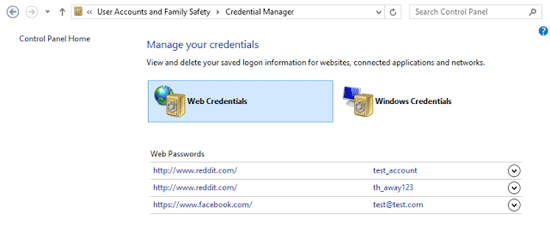
Internet Explorer 10 / 11 Stored Passwords

In this article we'll show you how to recover Internet Explorer 11 stored passwords from Windows Vault. With the Internet Explorer Password Recovery program you can retrieve all autocomplete passwords that are stored in the Credential Manager. This can be useful if a user forgot the password before reinstalling Windows.

How to Recover Internet Explorer 11 Stored Passwords?
  1. Download and install the Internet Explorer Password Recovery program on your computer.
  2. After you've installed it, start the program.
  3. Click on the Start Recovery button, and then select the Recover IE Password option from the drop-down menu.
  4. The program will decrypt your website passwords saved in Windows Vault, and display the login information (including website URL, username and password) immediately.
Besides recovering Internet Explorer 10/11 passwords, Internet Explorer Password Recovery program can also extract the saved passwords from Internet Explorer 6, 7, 8, 9.