Tuesday, August 5, 2014

How to Reset Lost Windows Password of Xen HVM

Have you come across a situation when you need to reset the admin password of a Xen virtual machine? If you face the login issue with Xen HVM, you can reset lost Xen Windows password with PCUnlocker. Today I'm going to show how does reset Windows administrator password in XEN HVM.

How to Reset Lost Windows Password of Xen HVM?
  1. Download the self-extracting Zip archive of PCUnlocker and save it to your host OS. Extract the CD image (pcunlocker.iso) from the downloaded file. If you've enabled EFI/UEFI in your Xen VM, you need to use PCUnlocker Enterprise which supports UEFI booting.
  2. Start virt-manager (also known as Virtual Machine Manager). Select your Windows VM that need a password reset, click on EDIT menu at the top and then select Virtual Machine Details.
  3. In the Details window, click on IDE CDROM 1 tab. Click Connect to mount the PCUnlocker ISO image (pcunlocker.iso) to the virtual CD drive.
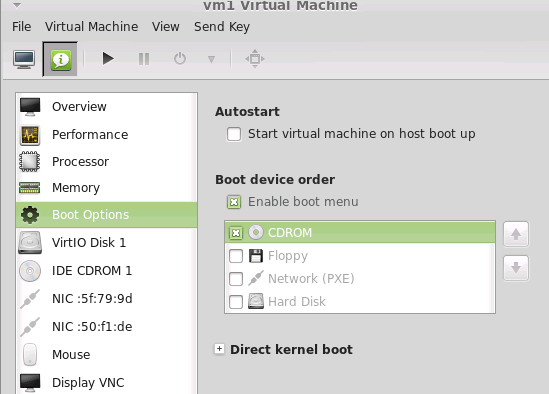
  4. Click on the Boot Options tab. Tick Enable boot menu. Check the CDROM item and put the CDROM item on top of the boot device list. Click Apply to save your changes. xen-boot-order
  5. Power on your Windows virtual machine and Xen will now boot from the PCUnlocker CD image, loading the WinPE OS and taking you directly into the tool. This program automatically finds your Windows SAM file and show you a list of local accounts.
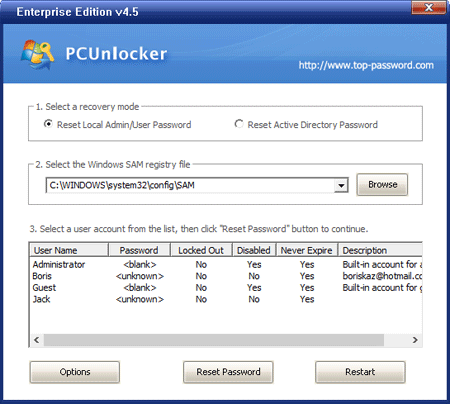
  6. Select one of your user accounts and click on Reset Password button. It will reset your Windows VM password quickly, as well as unlock the account in the event it is locked out, disabled or expired.
  7. Disconnect your CD drive and restart the VM. Now you can enjoy log on to your Windows virtual machine without entering any password.
 

Thursday, July 17, 2014

How to Unlock / Remove Windows Vista Administrator Password

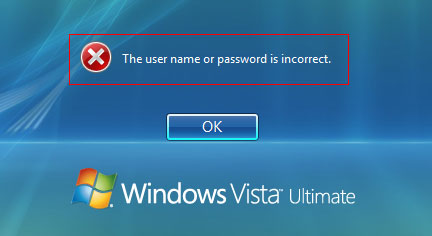
Forgot the administrator password to your Windows Vista-based computer? How can you remove / unlock Windows Vista password? Thankfully there is a bootable utility to bypass Windows Vista password so you can get back in, but you'll need access to another computer to make it work.

forgot Windows Vista password

How to Unlock Windows Vista Administrator Password?
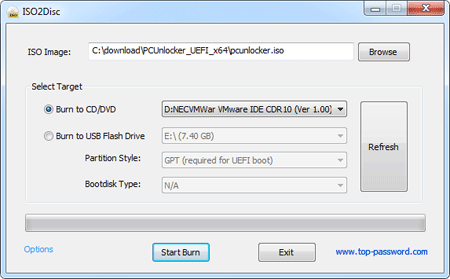
  1. PCUnlocker is a paid tool that exists of an ISO image that needs to be burned to a CD or placed on a bootable USB drive. If you've purchased the program, you'll receive a download link to the full version of PCUnlocker. Once you’ve downloaded it, unzip it and burn the ISO file to a blank CD with the ISO2Disc program.

  2. Once you have the boot disc created, pop it into your Vista computer and start it up. Depending on how your BIOS is set, it may automatically boot from the disc, or you may have to bring up a boot device menu. On Dell computers you can do this by pressing F12 at the beginning of the boot process, most boot screens will display information on what key you need to press to get the menu where you will then want to choose your CD/DVD drive.
  3. When the computer boots from the boot disc, it will load the Windows PE operating system and run the PCUnlocker program. PCUnlocker will search the available drives on your computer looking for SAM databases, which is where your Windows account login credentials are stored. If you have more than one OS installed, you need to select the one you wish to reset.


  4. Once you've choose the SAM file, you'll see a list of local accounts that exist in the selected SAM database. Select the Administrator account and click on "Reset Password" button, you'll be told if you're ready to remove the account password. Click Yes and the changes will be made in no time. You can now eject the boot disc, and restart your computer.
  5. Windows Vista will load, and if you're the only user on the computer, it will automatically login. You're back in!

Monday, July 7, 2014

Reset Forgotten HP Pavilion Windows 8 Laptop Password

Forgot Windows 8 admin password for your HP Pavilion laptop? If you have no idea what the password is, here's how can you easily reset forgotten Windows 8 password on HP Pavilion laptop.

How to Reset Forgotten HP Pavilion Windows 8 Laptop Password?

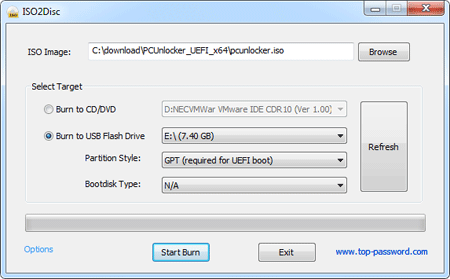
1. Before resetting your password, you need to create a bootable PCUnlocker USB drive from an alternate PC. Download the ISO image of PCUnlocker and then burn it to a USB flash drive with ISO2Disc.

2. Plug the USB drive into your HP Pavilion laptop. Turn on your laptop and repeatedly press the ESC key to access the Startup Menu. As the startup menu indicates, press F10 to enter BIOS Setup.

3. Go to the System Configuration menu, enter Boot Options. Change Legacy Boot to ENABLE, then move USB Diskette on Key/USB Hard Drive to top of boot order. Save your changes and exit BIOS.

4. During reboot, press the ESC key to access the Startup Menu again. This time press F9 to boot from USB drive.

5. PCUnlocker will load after USB boot. It displays a list of local accounts for your Windows 8 system. Choose a account and click on Reset Password button. This will reset your forgotten Windows 8 password instantly.

6. Restart your laptop and disconnect the USB drive. You can then login to your HP Pavilion Windows 8 laptop without a password! That's it!


Sunday, June 29, 2014

How to Change Windows Password without Knowing it

Need to change Windows password but you've forgotten the current password? Today I am going to show you two options to change Windows password without knowing the original password.

Option 1: Change Windows Password from Command Prompt

This is an especially handy trick if you want to change a password on an account but you've forgotten the old password (going through the Control Panel can require confirmation of the old password). You need to have admin access to perform this change from the command line.
  1. Open an elevated Command Prompt. Click on Start button, go to All Programs -> Accessories and right click on Command Prompt and select "Run as Administrator" from context menu. In Windows 8, you can do this by simply pressing Windows Key + X + A.
  2. You can use the net user command to change Windows password easily, without supplying the old password:
    net user username  new_password
    Replace username with your Windows account name, and new_password with your desired new password.
If you're totally locked out of Windows, you're unable to run any program such as command line tool to change your password. In this situation, you need to use a bootable media to change Windows password.

Option 2: Change Windows Password with PCUnlocker

PCUnlocker is a bootable utility that can reset the password of any Windows user account. It works with all versions of Windows, including Windows 8.1 and Windows Server 2012. Follow these steps and you can change Windows password without knowing the old password:
  1. First of all, you need to use another PC to download the PCUnlocker program, which comes as a bootable CD image. Burn the ISO image to a blank CD or USB drive using the ISO2Disc utility.
  2. Insert the newly burned CD or USB drive into your target computer, and set it to boot from CD/USB.
  3. Once you've booted into the CD/USB drive, you'll be presented with the screen of PCUnlocker. This program automatically locates the SAM database file for your installed Windows operating system, and shows you a list of local user accounts.
    Reset Windows Password
  4. Select a user account and click on Reset Password button. It will remove your old password immediately. Restart the computer and you can then log into your Windows account without typing a password!

Monday, June 23, 2014

Toshiba Satellite Windows 8 Laptop Password Reset

Lost Windows 8 admin password to your Toshiba Satellite laptop? You can use some bootable utilities like BartPE to reset your lost Windows password, but such disks are Windows XP based operating systems which can be used to unlock only Windows 7, Vista and XP (not including Windows 8).

The reason behind this is, most of Windows 8 laptop is configured in UEFI mode (Unified Extensible Firmware Interface). The UEFI mode does not allow to boot legacy OS like Windows XP, DOS etc. So to reset Windows 8 password, the conventional method does not work.

Luckily, the latest version of PCUnlocker came out that can boot in UEFI mode. This article will introduce how to make a PCUnlocker Live USB and then use it to bypass Windows 8 password on Toshiba Satellite laptop.

Create A PCUnlocker Live USB

If you can't boot into your Toshiba Satellite Laptop, you'll need to borrow one from a friend to make your own PCUnlocker Live USB drive, but other than that, all you really need is a USB flash drive. Here’s what you need to do:
  1. Download the PCUnlocker Enterprise and save it on your spare computer. Please note both the Standard and Pro editions don't support UEFI booting. The downloaded file is a self-extracting .zip file which contains a UEFI bootable ISO image: pcunlocker.iso. Extract the ISO image file from it.
  2. Burn the ISO image file to your USB flash drive using the freeware ISO2Disc or Rufus. Make sure you choose the "GPT" or "GPT partition scheme for UEFI computer" option while burning the USB drive. If you don't have a USB drive at hand, you can use a blank CD to make a PCUnlocker Live disc.

  3. Once your USB drive has finished burning, insert it into your Toshiba Satellite laptop.
Reset Toshiba Satellite Windows 8 Laptop Password

Now that you've successfully created a PCUnlocker Live USB drive. It's time to boot into the USB drive and reset Windows 8 password. Here is what you need to do:
  1. Turn on your Toshiba Satellite laptop. As soon as the Toshiba logo appears, press F12 to get into Boot Menu. Using the arrow keys to select the DVD option and press Enter. In some Toshiba notebooks or laptops, in order to access the Boot Menu you might need to press the ESC key or the "C" key as you boot.
  2. Once you've booted into the PCUnlocker Live USB, you'll be presented with the screen of PCUnlocker. This program automatically locates the SAM database file for your installed Windows operating system, and shows you a list of local user accounts.

  3. Choose your administrator account and click on "Reset Password" button. The program will remove your forgotten Windows 8 password quickly! If you're using a Microsoft account as your computer's login, make sure you choose the associated local account and the program will unlock your Microsoft account password locally.
  4. When it's done, reboot your system and you can log back into your Windows 8 account. Besides bypassing Windows 8 password, you can also use PCUnlocker Live USB drive to reset Windows 7, Vista and XP passwords on your Toshiba Satellite laptops.

Wednesday, June 11, 2014

Lenovo Miix Windows 8 Tablet Password Recovery

Locked out of Lenovo Miix tablet because your Windows 8 admin password is lost? How can you change or reset it without needing to reinstall it?

Both Lenovo Miix 2 and IdeaTab Miix10 are using pure UEFI (32-bit) instead of traditional. To reset the password you have to use a Windows password recovery tool that supports UEFI booting. PCUnlocker Enterprise is the right one that you're looking for. In this tutorial I'll show you how to use it to reset forgotten Windows 8 password on Lenovo Miix tablet.

How to Reset Forgotten Windows 8 Password on Lenovo Miix Tablet?

Use an alternate PC to download the bootable ISO image of PCUnlocker Enterprise and extract it. Burn the pcunlocker.iso file to your USB flash drive with the freeware ISO2Disc. Remember that you choose the GPT partition style. This will create a PCUnlocker Live USB drive with UEFI bootloader.

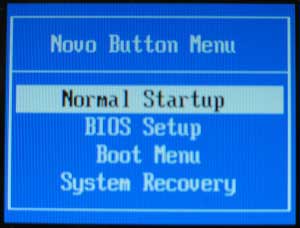
Plug the USB drive into your Lenovo Miix tablet. When the tablet is off, press and hold the volume up button and then press the Power button, until the Novo Button Menu appears on the screen. Choose the Boot Menu option, and then select your USB flash drive and press Enter.
novo-button-menu
Once it boots to the PCUnlocker program, select your Windows account and click on Reset Password button to remove your forgotten password. If you use a Microsoft account as your tablet login, there should be a local account that is linked to your Microsoft account. Choose that local account to proceed and this will also unlock your Microsoft account password locally.

Restart your tablet and remove the USB drive. You can then log back into your Lenovo Miix Windows 8 tablet without a password! This method works with all Windows 8 tablets of Lenovo Miix series.

Friday, June 6, 2014

How to Reset Windows 8 Tablet to Factory Settings

If your Windows 8 tablet has been infected by a virus or has become slow to the point of being unusable, resetting the tablet to factory settings may be the best and quickest solution. Luckily, Windows 8 has built-in tool to reset your tablet to its original state. In this article I'll show you 2 options to reset Windows 8 tablet to factory settings.

WARNING: All your documents, pictures, settings, accounts and any other data on your Windows 8 tablet will be deleted while performing factory reset.

Method 1: Reset from within Windows:
  1. Swipe in from the right edge of the screen, tap Settings. If you're using a mouse, point to the upper-right corner of the screen, move the mouse pointer down, click Settings.
  2. Tap or click Change PC settings.
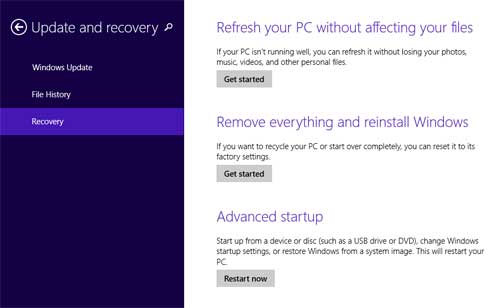
  3. Tap or click Update and recovery, and then tap or click Recovery.reset-windows-8
  4. Under Remove everything and reinstall Windows, tap or click Get started.
Method 2: Reset from Windows 8 Login Screen
If you've lost your password, you may not have to reset your tablet. See unlock Windows 8 password before performing these reset steps:
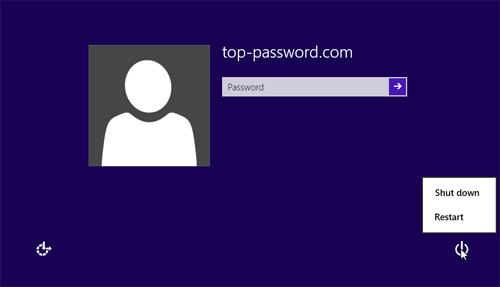
  1. From the Windows sign-in screen, tap or click the Power icon in the lower right corner of the sign-in screen.
  2. Press and hold the Shift key. (If you're using the on-screen keyboard, tap or click the Shift key.)
  3. While the Shift key is still pressed, tap or click Restart. After the tablet restarts, the Choose an option screen will display.
  4. Tap or click Troubleshoot.
  5. Tap or click Reset your PC.
If you don't have a keyboard connected to Windows 8 tablet, you'll need to use the on-screen keyboard to do these reset steps. From the Windows 8 sign-in screen, tap or click the Ease of access icon in the lower-left corner of the screen, and then tap or click On-Screen Keyboard.