Before you can install Adobe Acrobat you'll need to find the product key
that came with the program. Adobe Acrobat requires that you enter a
unique product key before using it.
If you've lost your product
key, there may be a way to find it as long as Adobe Acrobat is still
installed. You might be able to recover Adobe product key if you've uninstalled the program but only if the product key information was left in the computer.
With Product Key Finder
program you can easily recover lost product keys for Adobe Acrobat,
Adobe Dreamweaver, Adobe InDesign, Adobe Illustrator, Adobe Photoshop,
Adobe Flash, Adobe Fireworks and more. Simply scan your system for all
installed Adobe products and make a backup of Adobe product keys.
Step 1. Download and Install Product Key Finder
1) Click here to download the setup package of Product Key Finder
and save it in a place that is easy to find, such as your PC desktop.
2) When the download is complete, double-click the download file to
run the installation wizard. Follow the on-screen instructions to
complete the installation.
Step 2. Recover Adobe Product Key
1) Launch the Product Key Finder program.
2) Click the Start Recovery button, it will bring up a drop-down
menu that provides three recovery mode: From current system, From
non-booting system and From remote computer.
3) Select the From
current system mode from the drop-down menu. This program will
automatically scan your local PC for Adobe product keys. Quickly recover
and display product keys for Adobe Acrobat, Adobe Dreamweaver, Adobe
InDesign, Adobe Illustrator, Adobe Photoshop, Adobe Flash, Adobe
Fireworks and other Adobe products installed on your computer.
Showing posts with label product key finder. Show all posts
Showing posts with label product key finder. Show all posts
Saturday, June 2, 2012

Sunday, March 25, 2012
How to Recover Lost Product Keys on Windows 7
Lost your product key somewhere but now you have to reformat Windows 7 system and you cant find the box that contain the key. How to recover lost product keys on Windows 7? The product keys of installed Windows programs will lost after reinstalling the operating system or in the event of a system crash. So you'll know the importance of performing regular backups to save your product keys in case of a system failure.
In this article, we'll provide a way to quickly and easily recover and backup the product keys for most commercial software installed on your local computer. To get started you need to download and install the latest version of Product Key Finder. Then follow these steps:
How to Recover Lost Product Keys on Windows 7
In this article, we'll provide a way to quickly and easily recover and backup the product keys for most commercial software installed on your local computer. To get started you need to download and install the latest version of Product Key Finder. Then follow these steps:
How to Recover Lost Product Keys on Windows 7
Launch the Product Key Finder program.
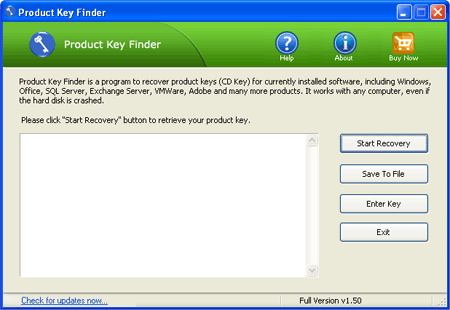
- Click the Start Recovery button, it will bring up a drop-down menu that provides three recovery mode: From current system,From non-booting system and From remote computer.
- Select the From current system mode from the drop-down menu. This program will automatically scan your Windows 7 system for product keys. Quickly recover and display product keys for Windows 7, Office, Adobe Photoshop, Adobe Reader, SQL Server, VMware Workstation, MS Exchange and and many other software products installed in your Windows 7 system.
- Click the Save To File button to backup all of the recovered product keys to a safe place, or even print it out so all of your Windows 7 product keys are available on one sheet of paper.
Subscribe to:
Posts (Atom)