Monday, December 24, 2012

Forgot Windows 8 Password for Your Laptop?

Forgot Windows 8 password for your laptop? It is troublesome when you forgot windows 8 password especially your system contains important data. Though re-installing Windows 8 will help you remove Windows 8 password, it also erase your important data on computer. Many computer newbies don’t have any idea about password reset disc and other methods to reset the password in Windows 8. Here I’ll show you the easiest way to reset Windows 8 password using a bootable password reset disc.

How to Reset Forgotten Windows 8 Password for Your Laptop?
Reset Windows Password utility is one of the best Windows password recovery software which can help you unlock administrator password easily on Windows 8, 7, Vista, XP.

You have to boot into this program off a CD or USB drive, so it downloads as an .iso image file. Double-click that file and Windows just might start a program that burns the disc. If it doesn’t, download and install ISO2Disc, then try again. Simply copying the .iso file to a CD won’t work.

When you boot the Windows password reset disc, the computer will load the mini operating system inside the disc and finally start the Reset Windows Password program. The program automatically finds the Windows SAM database and retrieves the user accounts existing in your Windows 8 installation.
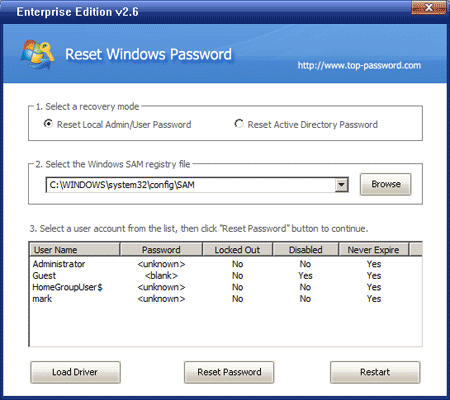


Simply select the user account whose password you want to reset, then click on Reset Password button. It will delete the forgotten/unknown password in no time.

Finally remove the CD and reboot the computer. It will boot Windows into the logon screen. Choose your user account and left the password field as blank, you can log in to Windows 8 without any hassle.

Sunday, December 2, 2012

How to Unlock Windows XP Login Password


If you’ve lost your Windows account password, hopefully you had the foresight to create a password reset disc. Windows XP provides the option of creating a password reset disc to unlock lost accounts, but you need access to your account to do so. What to do if you forgot Windows login password and don’t have password reset disc?
In this tutorial we’ll show you the most efficient and easiest way to unlock Windows XP login password using a password unlocker boot CD. Just create such a boot CD in another computer, then boot your locked Windows XP computer from the CD and you can remove your forgotten login password easily.
How to Unlock Windows XP Login Password?
1. Before getting started, you need to prepare a password unlocker boot CD. Just download the Reset Windows Password software onto an alternative computer. Once the download is complete, unzip the download file and you’ll get the ResetWindowsPwd.iso file. Burn this ISO image to a blank CD using any CD recording program such asBurnCDCC.
2. Power on your locked Windows XP computer and boot it into BIOS. Change the boot order so the computer will boot from CD prior to hard drive. Once the boot order is configured correctly, insert the password unlocker boot CD into the computer. It will load the operating system inside the CD.
3. After a while, the system will fire up the Reset Windows Password program. It automatically detects the SAM registry hive on your computer and shows a list of Windows user accounts.
4. Choose a user account whose password needs to be unlocked, and click on Reset Password button. The program will remove the user login password in a matter of seconds.
Restart the computer and take out the password unlocker boot CD, the computer will start normally from your hard drive. You can then log in Windows XP system without being required to enter a login password. Done!

Thursday, November 22, 2012

How to Remove Windows Login Password Which You Have Forgotten

Forgot Windows login password? Or someone change the password on your computer and you can’t log in now? Password Recovery Bundle is the only risk-free solution to safely remove a forgotten Windows login password, so you can log back into Windows without losing any important files.

What you need to do is download the software onto an alternative computer and create a password removal CD. Boot the target computer from the CD and it enables you to remove Windows login password easily.

How to Remove Windows Login Password Which You Have Forgotten?

1. Download Password Recovery Bundle and save it onto an alternative computer. Install the software on the computer.

2. Start Password Recovery Bundle program and click on Windows Password button. This will bring up a new dialog which allows you to create a bootable password removal CD ( You can create a password removal USB drive if your computer doesn’t come with a CD/DVD-ROM ).

3. Set your locked computer to boot from the password removal CD. To boot from the CD-ROM drive, you may need to press a key such as F8 or F12 while your computer is starting up and set CD/DVD as the first boot device in BIOS.

4. After the CD boots, you will have a mini operating system loaded into memory which will launch Reset Windows Password utility. It will not install anything to your hard drive.

5. Click on the Reset Windows Local Admin/User Password option, the program will automatically detect the Windows SAM registry hive and local user accounts existing in your local computer.


6. Choose the use account whose password you want to remove, and then click on Reset Password button, it will remove your forgotten Windows login password in a short time.

Take out the password removal CD and restart the computer, you’ll be able to login without a password. It’s essential to keep a password removal CD on hand for emergency situations, which allows you to remove Windows 8/7/Vista/XP login password quickly and easily.

Sunday, November 18, 2012

How to Break Windows 8 Password

Forgot your Windows 8 password? If you couldn’t find a way to break the password, you’ll have to rebuild your PC from scratch. There are many different ways to break Windows login password, but most of them don’t support the latest Windows 8 operating system. In this tutorial we’ll show you an effective way to break Windows 8 password easily.

To accomplish this, we’ll use a tool called Reset Windows Password that can break your password so you can log in to Windows 8 without losing any information on your PC.

Step 1. Create a Bootable Password Breaker CD or USB Drive

The first thing you’ll need to do is download the Reset Windows Password utility, which comes as an ISO image file. Once the download is complete, unzip the download file and you’ll get the ResetWindowsPwd.iso file.
Burn the ISO image file to a blank CD using any CD burning software such as BurnCDCC. If your computer doesn’t have a CD/DVD drive, you can burn the ISO image to USB drive using ISO2Disc software.

Step 2: Set Windows 8 PC to Boot from CD or USB Drive

Change the boot order in BIOS so the CD, or USB drive is listed first. Some computers are already configured this way but many are not. If you still can’t get it to boot from password breaker CD/USB or doesn’t know how to boot into BIOS, please refer your computer’s manual or check out this article: How to set computer to boot from CD/USB.

Step 3: Break Windows 8 Password

After booting from password breaker CD/USB drive, the computer will load the Windows PE operating system inside the CD/USB drive and launch the Reset Windows Password utility. Choose a user account whose password you want to break, and then click on Reset Password button. It will remove your forgotten Windows 8 password immediately.

Conclusion

The method could be used to break the password for both local account and Microsoft account in Windows 8. Additionally, it also enables you to break lost Windows 7/Vista/XP passwords, and reset local administrator and domain administrator passwords on Windows Server 2012/2008/2003/2000.

Thursday, November 15, 2012

How to Log in If You Forgot Microsoft Account Password in Windows 8

A Microsoft account — a Hotmail account or Windows Live ID — is a new way to sign in to any PC running Windows 8. After switching from local account to Microsoft account, you can’t log in to your local account any longer, until you switch back to local account again. What to do if you forgot the password of your Microsoft account in Windows 8?

There are tons of password recovery software which can help you recover or reset Windows local account password. But none of them support the new sign-in account – Microsoft account. In this tutorial I will show you how to reset Microsoft account password in Windows 8 so you can sign in with a new password.

Most people think that an internet connection is needed in order to log in Windows 8 with a Microsoft account, but you will discover that Windows 8 allows you to log in even without internet. Actually, your Microsoft password will be cached locally by Windows 8 when you set up a Microsoft account. Next time when you login, it will attempt to connect to internet and verify your entered password. If the password is incorrect or there is no internet connection, Windows will use the cached login credentials to verify your password.

The cached passwords are stored as hashes in the local system registry, so it is difficult to crack or recover the original password. However, it’s possible to update the cached password hash using a new password, so you can log in the system with a new password in case your actual Hotmail password is lost or forgotten. Reset Windows Password is the right software which can help you easily reset Microsoft account password by running from a bootable CD or USB drive.

Reset Windows Password utility comes as an ISO image file. Just burn the ISO image to a CD or USB drive on an alternative computer, then use the disc to boot your locked Windows 8 computer. The password reset program inside the disc will launch and it allows you to reset the password of your Microsoft account easily.

Monday, November 5, 2012

How to Bypass Windows Login Password

What to do next if you forget your Windows 7 or XP password? The very first thing you should try is to go to safe mode and check whether you have set your administrator password. But if the administrator password is also set then you may be thinking the only way is to format the computer and install fresh Windows. Well, here I am going to suggest a method that will simply bypass Windows login password in case you forgot Windows 7/Vista/XP password.

Reset Windows Password is the software we’ll use in this guide to bypass forgotten login password on Windows 7/Vista/XP, which comes in bootable CD ISO image file. Just burn the ISO image to a CD (or USB device) you can use to boot the machine and remove the login password. Here are detailed instructions to bypass Windows login password:

Step 1: Create a Windows Password Reset Disk
  1. First we need to find an accessible computer so we can create a Windows password reset disk on it.
  2. Download the ISO image of Reset Windows Password boot CD which is zipped.
  3. Extract the ISO file from the ZIP archive using WinZip.
  4. Burn the ISO file to a CD or USB drive using ISO2Disc. After a few minutes a Windows password reset disk will be created and we’ll used it later to unlock administrator account.
Step 2: Set Your Locked Computer to Boot from Password Reset Disk
  1. Turn on your locked computer and hold down F2 or whatever the setup key is shown as during the initial boot screen. This should bring up the BIOS.
  2. In the BIOS look for the Boot Device Priority option, set CD/DVD as the 1st boot device if you want to boot from Windows password reset CD. You can either set Removable Device as the 1st boot device if you want to boot off a Windows password reset USB drive.
  3. Next save your changes and reboot the computer.
Step 3: Bypass Windows Login Password

  1. Once your computer boots from the Windows password reset disk, it will launch the Reset Windows Password utility.
  2. This utility automatically scans your hard drive and find Windows SAM databases for all your Windows installations.
  3. Choose a Windows SAM database. The program will display all Windows user accounts inside it.
  4. Select the user account whose password is lost or forgotten, then click Reset Password button. The program will remove your forgotten password immediately.
Now you’ve completed the procedure of bypassing Windows login password. Remove the Windows password reset disk and reboot your computer. You’ll be able to bypass the Windows login screen without entering a password. It’s so simple!

Sunday, November 4, 2012

How to Reset Lost Domain Admin Password in Windows Server 2012

In my previous post I’ve shown you how to install Active Directory in Windows Server 2012. During the procedure of promoting your server to a domain controller, you’ll be prompted to set a strong password for the administrator account in case the password is blank. What to do if you forgot the domain administrator password after installation?

As system/network administrator, you are usually confronted with the problem of forgetting domain admin password. Even if you don’t have to reset a password now, you should get acquainted with this issue. In this tutorial we’ll show you the easiest way to reset a lost domain administrator password in Windows Server 2012.

How to Reset Lost Domain Admin Password in Windows Server 2012?
  1. Download and install Password Recovery Bundle on another computer that you can log in.
  2. Prepare a blank CD and insert it into the computer.
  3. Launch Password Recovery Bundle and click on Windows Password button, it will display the ISO burning dialog.
  4. Choose the CD you’ve plugged in and then click on Start Burn button to create a Live CD.
  5. After you have the Live CD, put it into the CD drive of your locked server PC whose password you want to reset.
  6. Turn on the server and have it boot from the Live CD. You may need to go into BIOS and set CD/DVD as the first boot device.
  7. After booting from the Live CD, it will load the Windows PE operating system inside the Live CD and start the Reset Windows Password program.
  8. Choose the Active Directory NTDS.dit database, it will display a list of domain user accounts inside the NTDS.dit database.
  9. Choose the administrator account from the list, then click on Reset Password button, the program will replace the forgotten/unknown administrator password with the new password: Password123.
Reject the Live CD and restart the server. You can then log in to the domain administrator account with the new password. It’s so easy to reset a lost domain admin password in Windows Server 2012!