Monday, January 20, 2014

Windows 8 UEFI Password Reset

Forgot the admin password on Windows 8 UEFI/GPT computer? Most of password recovery bootdisks won't boot normally any more when dealing with UEFI BIOS. PCUnlocker should be the unique bootdisk which is fully compatible with UEFI/GPT computer. It enables you to reset lost Windows 8 password with a UEFI bootable CD or USB drive.

There are three editions of PCUnlocker: Standard, Pro and Enterprise. But only the Enterprise edition supports UEFI booting. In this tutorial we're going to show you how to reset lost Windows 8 UEFI password using PCUnlocker Enterprise.

Step 1: Create A UEFI Bootable CD or USB Drive

After purchasing the full version of PCUnlocker Enterprise, you'll get the download link of PCUnlocker_UEFI_x64.zip. Unzip it and you’ll get the UEFI bootable ISO image of PCUnlocker. Burn the ISO image to a blank CD or USB flash drive using ISO2Disc.
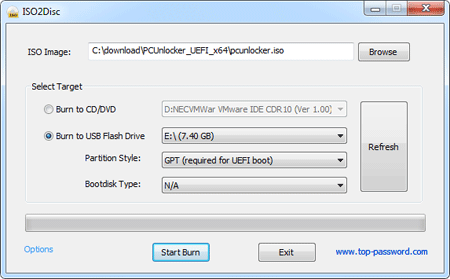
Create A UEFI Bootable CD or USB Drive

Step 2: Boot Your Locked PC from CD/USB Drive

Connect the CD or USB drive to your locked Windows 8 UEFI computer. Turn on the computer and press a key like F12 to bring up the Boot Menu. The exact key depends on your computer. If you can’t find a way to access the Boot Menu, you can either head over to BIOS for changing the boot order: set CD or USB drive as the first boot option.
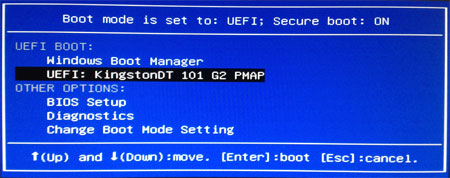
UEFI Boot Menu

Step 3: Windows 8 UEFI Password Reset

Now the computer will boot from the CD/USB drive. After a while, you'll see the PCUnlocker program itself, which automatically searches your Windows 8 SAM registry file and locates all Windows 8 user accounts existing on your computer.
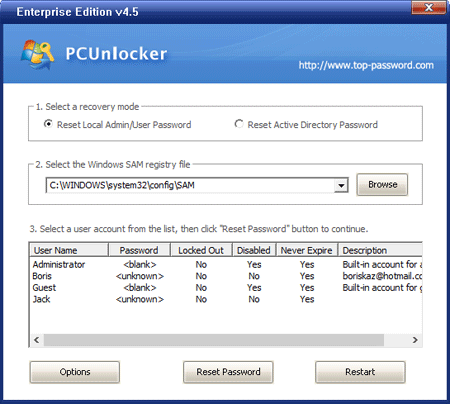
Windows 8 UEFI Password Reset

Choose a user account and then click on "Reset Password" button. The program will remove / reset your lost Windows 8 password, as well as unlocking the selected user account in case it is disabled, locked out or expired.
Remove the Live CD/USB drive and restart your computer. Now you can log back into your Windows 8 UEFI computer without a password!

Tuesday, September 24, 2013

How to Lock and Password Protect Your Folder in Windows

I have a little sister who enjoys deleting folders and files that are important to me. I need an easy way to password protect my folders! How do I protect my folders and files from being deleted, or hide them from my sister?
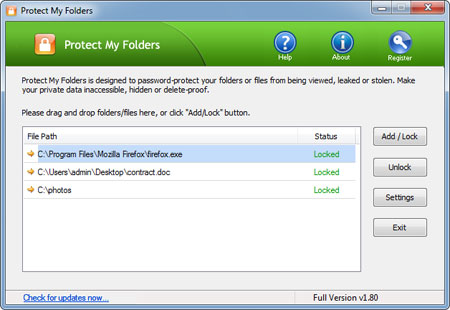
We all have files on our system that are valuable to us and that we do not want to lose. This can be anything imaginable, from Office documents to images or video files. Luckily there is a simple program called Protect My Folders, which allows you to lock and password protect your folders. It prevents your data from being accessed, misused, moved, copied, altered or deleted. All of your protected folders and files remain inaccessible without your password.

How to Lock and Password Protect Your Folder in Windows?
  1. Download the Protect My Folders application. Install it on your computer.
  2. For the first time usage, it will ask you to set a password to prevent others from accessing this application. Just enter the password to open main interface.
    Lock and Password Protect any Windows Folder
  3. Now, click the "Add/Lock" button, the Add Files and Folders dialog will appear. Select a folder and file you want to lock and press OK.
  4. Now you'll notice the selected folder or file has disappeared from its former location. Even if you try to copy, delete, move or rename the parent directory of your protected folder or file, you'll keep getting the "Access Denied" error.
  5. Exit the Protect My Folders application. The protected folder or file remains protected.
Beside locking your folders or files with password, Protect My Folder program can also help you hide your folders so that no one will ever know that they exist. It's that simple!

Monday, June 24, 2013

How to Reset Lost Windows 8 Password on Dell XPS Tablet

Forgot the administrator password on your Windows 8 Dell XPS tablet? How to reset Windows 8 password so you get back into your computer? In this article we’ll show you a simple but effective method to reset lost Windows 8 password on Dell XPS Tablet PCs.

How to Reset Lost Windows 8 Password on Dell XPS Tablet?

Download the zipped ISO image of PCUnlocker on another PC you can access. Unzip the download file and burn the ISO image on a USB flash drive using ISO2Disc program.

After you have created a PCUnlocker Live USB drive, connect it to your Dell XPS tablet which requires a password reset. Turn on the tablet PC and hit F2 from keyboard dock or volume- rocker at startup, and then disable the Secure Boot option in the BIOS. Apply settings and Exit.

Hit F2 from keyboard dock or hold down volume+ rocker at power-on. Choose your PCUnlocker Live USB drive and press Enter. Your tablet will load the WinPE operating system from your USB drive. After a while, you’ll see the PCUnlcoker program. The program displays a list of Windows 8 user accounts existing in your Dell XPS tablet.


Choose a user account and click on Reset Password button. The program will reset your lost Windows 8 password and also unlock/enable your user account when it’s necessary. Now click on Restart button to reboot the computer and remove the PCUnlocker Live USB drive.

After booting to the Windows 8 login screen, just leave the password box empty and you can log back into your Windows 8 user account immediately. It’s so easy to reset a forgotten Windows 8 password on Dell XPS tablet PC.

Sunday, June 16, 2013

How to Remove Windows 8 Password When You Forgot It

What to do if you forgot Windows 8 password? Is there a way to remove Windows 8 password without logging in? In a worst case scenario, where you don’t have a password reset disk nor have access to the only administrator account, Password Recovery Bundle can help. In this post, we will guide you through step-by-step procedure of removing Windows 8 password using a bootable CD or USB flash drive.

How to Remove Windows 8 Password When You Forgot It?

Download Password Recovery Bundle and save it to any computer you can access. Double-click on the setup file and install it. Launch the program and click on Windows Password button. From the pop-up dialog you can create a bootable Windows password removal CD or USB flash drive.

After the password removal CD/USB drive is created, reboot your locked Windows 8 PC and access system BIOS menu by pressing ESC, F2, F10, F9 or other BIOS key. Head over to Boot menu and set CD or Removable Drive as first boot option. Once boot priority is changed, save the changes and reboot the computer.

If you have changed the boot order successfully, the computer will boot from the CD/USB drive and start the Reset Windows Password utility after a while. From the program’s interface, you can see the Windows 8 SAM registry file and a list of Windows local user accounts.

Select a user account and click on Reset Password button. It will remove your forgotten Windows 8 password quickly. After that, remove the CD/USB drive and restart the computer. You can then log into your Windows 8 user account with a blank password.

Friday, April 19, 2013

How to Crack and Decrypt PDF Password at Ease

Do you have a password protected PDF document that you can’t copy or edit its content? Can’t open a password protected PDF document? There are two types of password that exists when working with PDF files. The user password will encrypt the file and prevent it from opening whereas the owner password will prevent the user from printing, copying text and adding notes in the PDF document. So if you are looking to unlock your PDF file, you can use PDF Password Recovery program to crack and decrypt PDF password at ease.

How to Crack and Decrypt PDF Password at Ease?

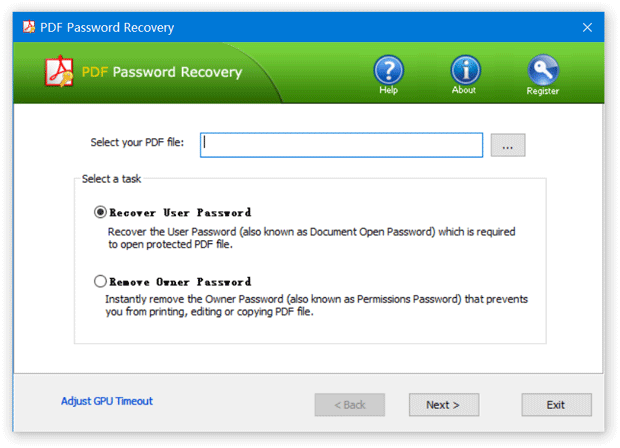
Simply download and install PDF Password Recovery application on your computer. After installing, start the application and you’ll see that there are two options on the main interface: Recover User Password and Remove Owner Password.


If the document’s original creator used a password to restrict copying or printing, please choose the Remove Owner Password option, the program will decrypt the PDF document and then generate a fresh copy of your original PDF file, but the new file is not protected with printing or editing restrictions. You can copy, print or edit any part of the PDF file at ease. This cracking procedure is instant, no matter how complex or strong your owner password is!

If the document is completely password-protected and won’t even allow you to open it, you need to choose the Recover User Password option. This program offers three cracking methods for you to recover the file open password: Dictionary attack, Mask attack and Brute-force attack. The recovery time could take a very long time, especially if the document’s original creator used a strong password.

Conclusion

The password protection imposed on PDF document can sometimes lock out owner yourself, PDF Password Recovery is a recommended option which allows you to crack and decrypt PDF password at ease.

Friday, April 12, 2013

Lost Windows XP Password – How to Get Back In?

Lost Windows XP password? How do you get back in? Is there a way to override or reset the password without wiping the entire system? Well, it is nearly impossible to recover the original password, but you can reset it easily, and Reset Windows Password utility can help. This tutorial will explain the process involved for resetting lost Windows XP password so you can get back in your computer quickly!

Lost Windows XP Password? A Simple Way to Get Back in Your Computer

Reset Windows Password utility is a program which runs from a bootable CD or USB flash drive. To reset lost Windows XP password, you need to access to a computer with internet access in order to install the program to a CD or USB drive. After installing, you can use the CD/USB drive to boot off your locked PC and remove the login password instantly. Here are detailed instructions:

Step 1: Download

Download the Reset Windows Password utility on an alternate PC with internet access. Once the download completes Right-click the .zip file and Select “Extract All”. This will decompress the contents, which there should just be a single .iso file inside.

Step 2: Installing to CD or USB Drive

Next, use the freeware ISO2Disc to make a bootable CD/USB drive from the ISO image you downloaded in the previous step. Open up ISO2Disc program and click on “Browse” button to locate the ISO file and choose the blank CD or USB flash drive you’ve plugged in, then click on Start Burn. A password reset bootdisk will be created in minutes.

Step 3: Change Boot Order in BIOS

Insert the bootable CD/USB drive into your Windows XP computer which is locked out. Restart the computer and hold down F2 or whatever the setup key is shown as during the initial boot screen. This should bring up the BIOS. Change the boot order in BIOS so your computer will boot from the CD/USB drive prior to the hard drive.

Step 4: Boot from the CD/USB Drive

If you set up the BIOS correctly the computer should automatically boot from the bootable CD/USB drive. When it loads to the Reset Windows Password screen, click on “Reset Local Admin/User Password” option. It will display a list of Windows local user accounts existing in your Windows XP system.

Step 5: Reset Lost Windows XP Password

Choose a user account and click on “Reset Password” button, it will reset/remove your lost Windows XP password in seconds. Remove the CD/USB drive and restart the computer, you can then immediately get back in your Windows XP system without typing a password!

The procedure is so simple that nearly every user with some basic computer skills can use it to reset Windows XP password easily when they forgot or lost Windows XP password. This method also works with Windows 8, 7, Vista and other operating systems.

Tuesday, April 2, 2013

How to Remove Windows Startup Password After Forgotten

Forgot your Windows startup password? How to reset or remove it after forgotten? There are several types of startup passwords which could be used to protect a Windows computer: BIOS password, Syskey, Windows user account password. After setting up one of these startup passwords, the computer will prompt you to enter your password each time you start up.

Tired of entering the startup password every time you boot your PC? Or simple forgot your startup password? This article will introduce you to all common options for you to remove Windows startup password.

BIOS Password

BIOS is the first program that runs when your computer starts. You can tell the BIOS to ask for a password when it starts, thus restricting access to your computer. BIOS passwords can be added extra layer of security for desktop and laptop computers, and are used to either prevent a user from changing the BIOS settings or to prevent the PC from booting without a password.

Forgetting your BIOS password can lock up the hardware and make the computer completely unusable. Fortunately there are a few known backdoors and software that can be used to bypass or reset the BIOS password on most systems. The BIOS password on desktop computer can be reset by removing the CMOS battery for a few minutes. However, laptop BIOS passwords are stored in a special chip on the motherboard and the only way to recover this password is to using BIOS password cracking utility. Have a look at this article:Recover BIOS/CMOS Password Using Free CMOSPwd Utility.

Syskey Password

As we all know, the Security Accounts Manager (SAM) database has been used by Windows to store password hashes for local user accounts. To make the hashes harder to decrypt, Microsoft introduced SysKey password, an additional layer of obfuscation SysKey which can be enabled in Windows using the SysKey utility. To learn how to enable Syskey, please refer to this article: How to Lock Your Computer with Syskey.

Syskey password can be helpful to prevent hackers from cracking Windows user password. There are no reliable tools that will help brute forcing Syskey password. The Offline NT Password & Registry Editor claims that it can help you disable Syskey startup password but I’ve tried it with no luck. After forgetting your Syskey password, the only feasible option is to do a system restore using a restore point dated before SysKey password was set, or reinstall the operating system.

Windows User Password

Have you ever been locked out of your computer by a forgotten Windows user password? There’s no need to get frustrated. It is relatively easy to bypass this safeguard. Reset Windows Password utility is the well-known software which enables you to remove Windows admin/user password easily by creating a password removal Live CD/USB. It works with almost all versions of Windows, including the latest Windows 8 and Windows Server 2012.