Showing posts with label reset windows password. Show all posts

Wednesday, October 17, 2012

How to get around Windows password when you forgot it? It seems to be extremely difficult if you don’t have the right tools. Here I would recommend Reset Windows Password utility, which enables you to get around Windows 8/7/Vista/XP password easily. The process can be undertaken with a basic knowledge of computer and a bit of time, and will allow you to reset the password on any user account.

How to Get Around Windows Password to Log on Your Computer?

1. Download the Reset Windows Password utility. Unzip the download file, you’ll get the CD ISO image: ResetWindowsPwd.iso, which contains a Windows password reset program.

2. Write the boot CD ISO image to a blank CD using a CD writer and CD writing program. If your computer doesn’t have a CD drive, you can burn the ISO image to a USB flash drive using ISO2Disc.

3. Insert the freshly-written boot CD into the computer whose administrator password needs to be reset. Restart the computer and boot from the CD.

4. After booting from the CD, it will load the operating system inside the CD and start the Reset Windows Password program.


5. Select the SAM registry hive from the drop-down list, it will display a list of local user accounts for your Windows installation.

6. Choose the user account whose password you forgot, then click on the Reset Password button, it will remove your forgotten password immediately.

7. Exit the password reset program and restart your computer. You can then log on your computer with a blank password.

With the password reset CD you can easily get around Windows password on almost all versions of Windows operating systems, quickly log on to your computer without losing any files.

Tuesday, May 15, 2012

How to Recover Windows Password for Windows 8/7/Vista/XP

I forgot my Windows Password and I am not able to login to Windows 7 system!! What can I do now? How can I login to my system as I have a lot of important data on my system? Are you in this situation? Well, if you are, then you are reading the right article.

It is important to not only choose a good and secure password, but one that you can also remember. If you have forgotten Windows password and can't log in to your computer account, it'll make you losing all access to your files on the computer.

A lot of people think that after forgetting Windows password, they absolutely have to reinstall their OS. Let me tell you something: They are wrong! With some necessary software you can recover Windows password easily. No need to reinstall the entire operating system. Here we'll demonstrate how to use Reset Windows Password to recover Windows 8/7/Vista/XP password instantly.

1. Create a Windows Password Recovery Disk

  1. Download and save the Reset Windows Password self-extracting Zip file to another accessible computer (not your locked computer), then extract the ISO image file: ResetWindowsPwd.iso from it.
  2. Put a blank CD or DVD into CD-ROM drive of the computer.
  3. Download and install the free CD/DVD recording software: ISO2Disc, launch the program.
  4. Click the Browse button to choose your ISO image file, then click the Start Burn button to write the ISO image onto your CD/DVD.
    Create a Windows Password Reset Disk

2. Change BIOS Settings

  1. Boot your locked computer. When it is powered on, check the boot-screen for setup key (i.e. DELETE key, F8 key, F2 key) to enter BIOS Setup Utility.
  2. Use the arrow keys to select the BOOT tab, then change the Boot Device Priority: Set 1st Boot Device to CDROM.
  3. Press F10 to save your changes.

3. Recover Windows Password

  1. Insert the Windows password recovery disk you've created into the locked computer, and start it.
  2. The system begins to load, and you'll reach the main window of Reset Windows Password program.
    Reset Windows Password
  3. Simply select a Windows account from the list, then click the Reset button to reset the password as blank.
Next, remove the password recovery disk and restart your computer. You'll find that you can log in to your computer without being required to type a password. This guide is intended for both skilled and non skilled users alike. Even the complete newbie can follow the steps to recover Windows password on Windows 8, 7, Vista, XP, including both computers and virtual machines.

Wednesday, May 2, 2012

How to Find Lost Windows Password in 3 Steps

Lost Windows Administrator password and do not have any other account? How to find Windows passwords when you forget it? One method of gaining access to the system is by trying hard to remember the forgotten password, or a password of another user which has the same level of administrative rights. However this approach doesn't work in most situations.

This guide here is telling about how to find lost Windows password in 3 steps. Reset Windows Password is the only software you need. This software enables you to create a Windows password finder bootable disk to access your computer and find lost Windows administrator password easily. It works well with Windows 7, Vista and XP.

1.Create a Windows Password Finder Disk

  1. Click here to download and save the Reset Windows Password self-extracting Zip file to a folder on your hard drive, then extract the ISO image file: ResetWindowsPwd.iso from it.
  2. Insert the prepared blank CD/DVD into the computer.
  3. Download and install the ISO2Disc utility, launch the program.
  4. Click the Browse button to locate your ISO image file, then click the Start Burn button to begin the burning process. A Windows password finder disk will be ready soon.
    Create a Windows Password Finder Disk

2.Change BIOS Settings

  1. Boot your locked computer. When it is powered on, check the boot-screen for setup key (i.e. DELETE key, F8 key, F2 key) to enter BIOS Setup Utility.
  2. Use the arrow keys to select the BOOT tab, then change the Boot Device Priority: Set 1st Boot Device to CDROM.
  3. Press F10 to save your changes.

3.Find Windows Password

  1. Insert the Windows password finder disk that you've created into the locked computer, and start it.
  2. The system begins to load, and you'll reach the main window of Reset Windows Password program.
    Reset Windows Password
  3. Simply select a Windows account from the list, then click the Reset button to remove the password.
The last step is to take out the Windows password finder disk and click Restart to reboot your computer. You'll find that you can log on to your computer using a blank password.

Instead of getting back the forgotten Windows password, Reset Windows Password can help you reset the original password you forgot, and you can login to the computer without entering any password. Just as you have never set a password on Windows.

How to Reset VMware Administrator Password

VMware is very useful for learning and testing purposes. You can run multiple virtual machines at the same time in VMware. But if you forgot the administrator password of your Windows virtual machine, it seems that there is no other way but to rebuild a new machine. It's a time-consuming task for most of us.

Reset Windows Password can be a lifesaver for helping you reset lost or forgotten administrator password of any virtual machine. Follow the simple steps below to reset VMware administrator password and unlock your virtual PC instantly.

1.Change VMware Setting

  1. Click here to download and save the Reset Windows Password self-extracting Zip file to a folder on your hard drive, then extract the ISO image file: ResetWindowsPwd.iso from it.
  2. Launch VMWare Workstation, Click on the File menu, select Open to open your existing virtual machine.
  3. Double-click on the CD/DVD device, you will see the Connection properties for this device. Click on Use ISO Image, then browse to the ISO image file: ResetWindowsPwd.iso.
    Change VMware Workstation Settings

2.Reset Windows Administrator Password

  1. Click on the VM menu, then select Power -> Power On to BIOS, your virtual machine will automatically run into BIOS Setup Utility. Set the 1st Boot Device to CD/DVD. Press F10 to save your changes.
    Set BIOS to boot from CD/DVD
  2. The machine should then reboot, you will see Reset Windows Password is initializing.
    Loading from the Reset Windows Password bootdisk
  3. Simply select your Windows SAM registry hive, the program will display a list of Windows user accounts. Select the administrator account, then click the Reset button to reset the password to blank.
    Reset Windows Password
  4. Click the Restart button to reboot the virtual machine, you are able to log in to the administrator account with a blank password. It is that simple.
In addition, you can burn the ISO image of Reset Windows Password to a physical CD/DVD or USB flash drive, then bring it to boot your locked computer. It allows you to easily reset lost administrator and user password for Windows 7, 2008, Vista, 2003, XP, 2000.

Reset Forgotten HP Password with Password Recovery Bundle

Forgot Windows login password for your HP laptop? You'll be completely locked out of your computer if you couldn't use the fingerprint logon as well. How to bypass or reset the HP password so that you can regain access to your computer? These are the most common issues that many HP desktop/laptop users may encounter in their daily life.
In this article, we'll show you how to reset forgotten HP password with an easy-to-use password utility - Password Recovery Bundle. It enables you to reset lost Windows password for your HP computer no matter what Windows system you are running. Safely and quickly remove HP password without losing your files.

1.Create a Windows Password Reset Disk

  1. Download Password Recovery Bundle and save it to any computer with internet access. Launch the program and click the Windows Password button, and you'll get the interface as follow.
    Create a Windows Password Reset Disk
  2. Prepare a blank CD/DVD drive and insert it into the computer, then click the Refresh button and select the device you just plug in. Click the Start Burn button to begin the burning process. A bootable password reset disk will be ready in a few minutes.

2.Change HP BIOS Settings

  1. Turn on your locked HP computer by pressing the power button.
  2. Open the BIOS setup by pressing and holding F1 key when the color logo appears on the computer monitor until Entering SETUP appears on the screen.
  3. Using the arrow key on the keyboard to select Boot, then Boot Device Priority. Press Enter key.
  4. Move CD-ROM to the top of the boot devices list.
  5. Save the BIOS settings and exit it by pressing F10;

3.Reset Forgotten HP Password

  1. Insert the Windows password reset disk that you've created into your locked HP computer. Restart the computer.
  2. The system begins to load, and you'll reach the main window of Reset Windows Password program.
    Reset Windows Password
  3. Choose the account you would like to reset the password for and click the Reset button to remove/unlock the password.
Restart the HP computer, eject the boot CD and you should be able to log into Windows system with that user account. This trick works on Windows 7, 2008, Vista, XP, 2003 and 2000.

Friday, February 10, 2012

How to Set up PIN Logon in Windows 8?

Windows 8 introduces two new ways of authenticating yourself other than just using a text password. Now you can use a Picture Password, which uses gestures, as well as PIN code. In previous post I covered the details of picture password. Now I'll show you how to set up PIN logon in Windows 8.

A PIN (Personal Identification Number) is almost the same as a password except you can only use numbers, and it must be 4 digits long—which doesn’t seem that secure, but there’s a chance they will allow longer PIN codes in future versions of Windows 8.

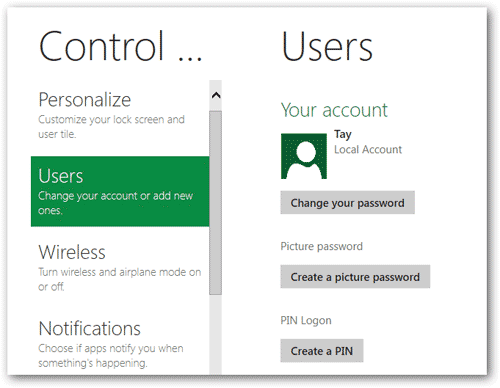
To setup a PIN, go to the Control Panel, click on Users, and then click on Create a PIN.


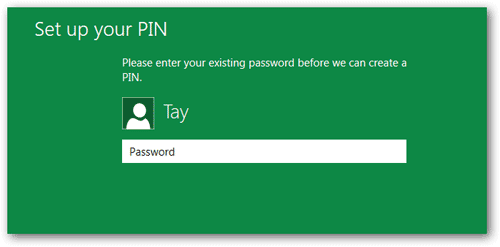
Now you will have input your password.


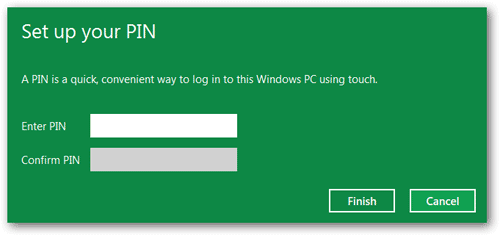
Now you will be asked what PIN you want to use, remember 4 DIGITS.


Now when you go to log in, all you have to do is input the 4 Digit number.


Keep in mind that you can continue using a text password to logon if you prefer. Even if you have forgotten the picture password, PIN digits or traditional text password, you can still take advantage of the Reset Windows Password utility to reset/remove the traditional text password. After log on your computer using the blank text password, you are allowed to setup a new picture password or PIN logon again.